Help & Guides
Everything you need to know to create stunning AI-powered carousels. Follow along step by step.
Creating Your First Carousel
Go from raw text to a polished carousel in under 60 seconds.
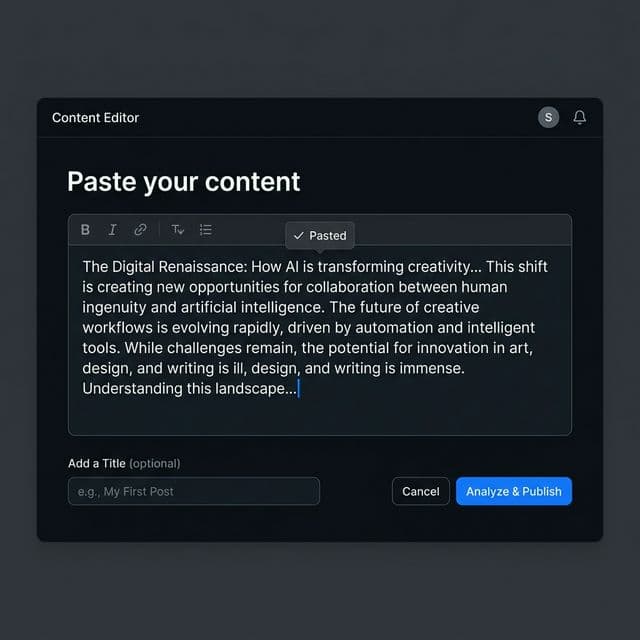
Step 1 — Paste Your Content
- 1Navigate to the Generator page from your Dashboard or click "New Carousel" in the header.
- 2Paste your text into the input area — this can be a blog excerpt, LinkedIn post draft, thread idea, or any long-form content.
- 3Click "Generate Carousel" and our AI will summarise your content into concise, slide-ready text.
Tip: For best results, paste 200–800 words. The AI works best with structured content that has clear points or takeaways.
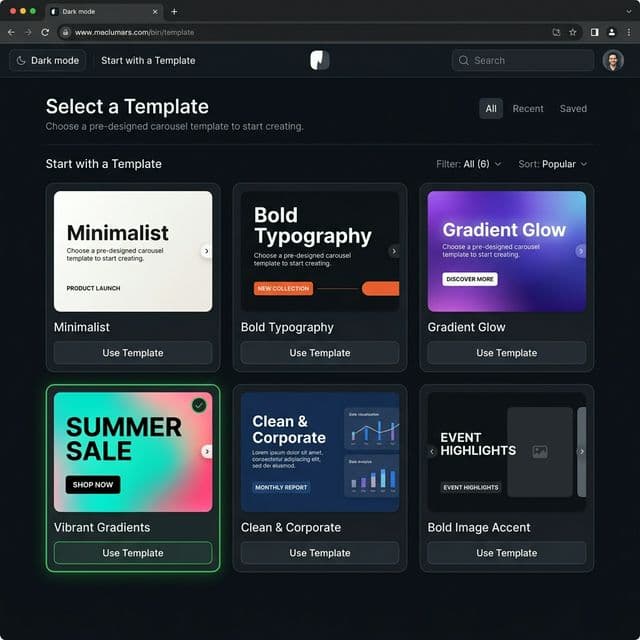
Step 2 — Choose a Template
- 1After generation, you'll see the editor with a template selector in the Design tab — browse 20+ professionally designed options in a grid layout.
- 2Each template has a unique visual style — minimalist, bold typography, gradient backgrounds, editorial layouts, and more.
- 3Click on any template to preview how your content looks. Switch between templates to compare.
Tip: For LinkedIn, clean and professional templates work best. For Instagram, try bold or colorful designs to stand out in the feed.
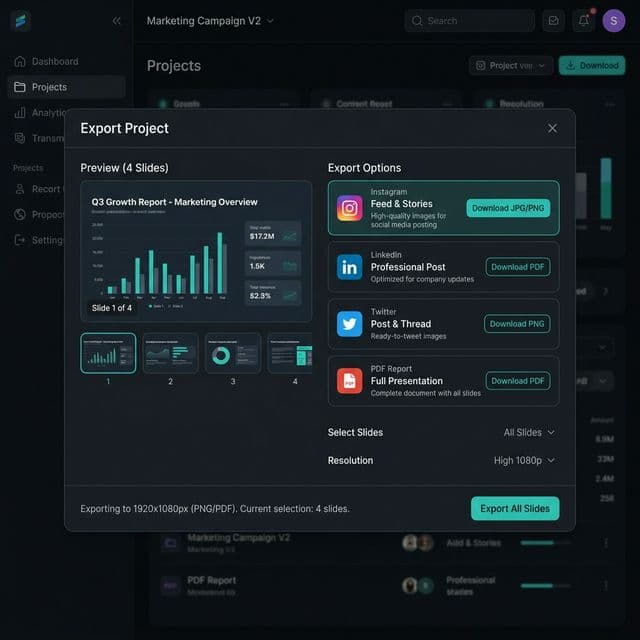
Step 3 — Export & Share
- 1Once you're happy with the design, click the "Export" tab in the editor.
- 2Choose your format: PNG for social media, PDF for documents, or ZIP to download all individual slides.
- 3Click "Download All Slides" — your carousel will download as high-resolution images, ready to upload directly to your social media platform.
Tip: Pro tip: Export in both Instagram and LinkedIn sizes if you post to multiple platforms — the content adapts automatically!
Quick Tips & Tricks
Get the most out of SlideStack with these power-user tips.
Customizing Fonts
Use the font controls in the editor sidebar to adjust font size and style. Larger fonts are great for impact headlines; smaller fonts work well for detail-heavy slides.
High-Resolution Exports
Pro and Agency users can export in ultra high-resolution (up to 4K) for maximum clarity. Enable this in the export dialog before downloading.
Editing Individual Slides
Click on any slide in the editor to select it. You can edit the text directly, rearrange slides, or remove ones that don't fit.
Choosing the Right Template
Templates are grouped by style. Use "Wealth Impact" or "Aurora" for premium content, "Minimalist" for clean posts, and "Neon" for attention-grabbing designs.
Ready to Try It Yourself?
The best way to learn is by doing. Start creating your first carousel now — it only takes 60 seconds.
Start Creating — It's Free